Point to move.
Raise your index finger with your thumb apart. Move your hand to guide the pointer across your selected screen.
Point, pause, and carry on. AirDesk turns your webcam into a simple way to move and click across your Windows screen.
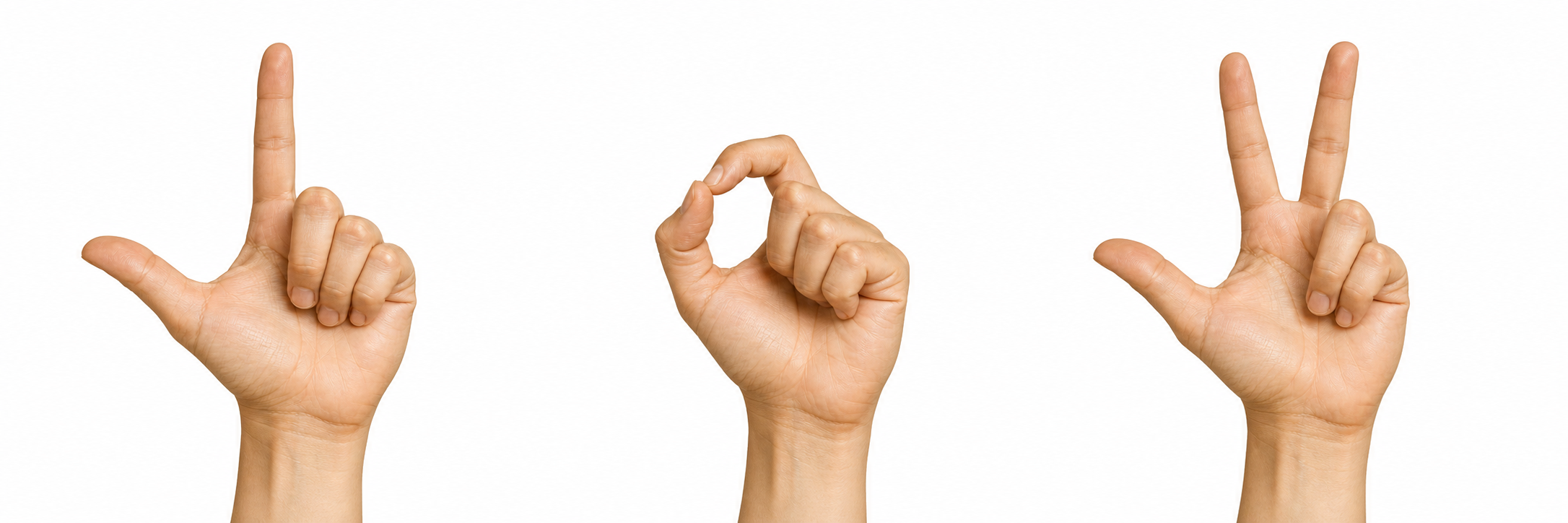
These default gestures are a place to start. Practise inside the home camera preview, or choose your own supported assignments.
Raise your index finger with your thumb apart. Move your hand to guide the pointer across your selected screen.
Settle over a target. The circle fills, then a check confirms your click. Move away to choose something else.
An open palm rests control. Point again when you’re ready, or use your physical mouse at any time.
Hover over the circle, or tap it to play. With a keyboard, focus it and press Enter.
Interactive illustration only. This website does not access your camera or control your computer.
See how AirDesk reads your hand and practise on targets inside the home camera preview. Stay on the home screen while you learn.
The camera view and larger targets stay together, with guided practice for enabled click, scroll and drag gestures.
Home shows your active gesture images, grouping shared poses with their actions. Settings → General can optionally show the same reference over other apps without intercepting clicks.
Open Settings → Gestures to choose a function, pick one of three compatible images, turn it off or restore defaults.
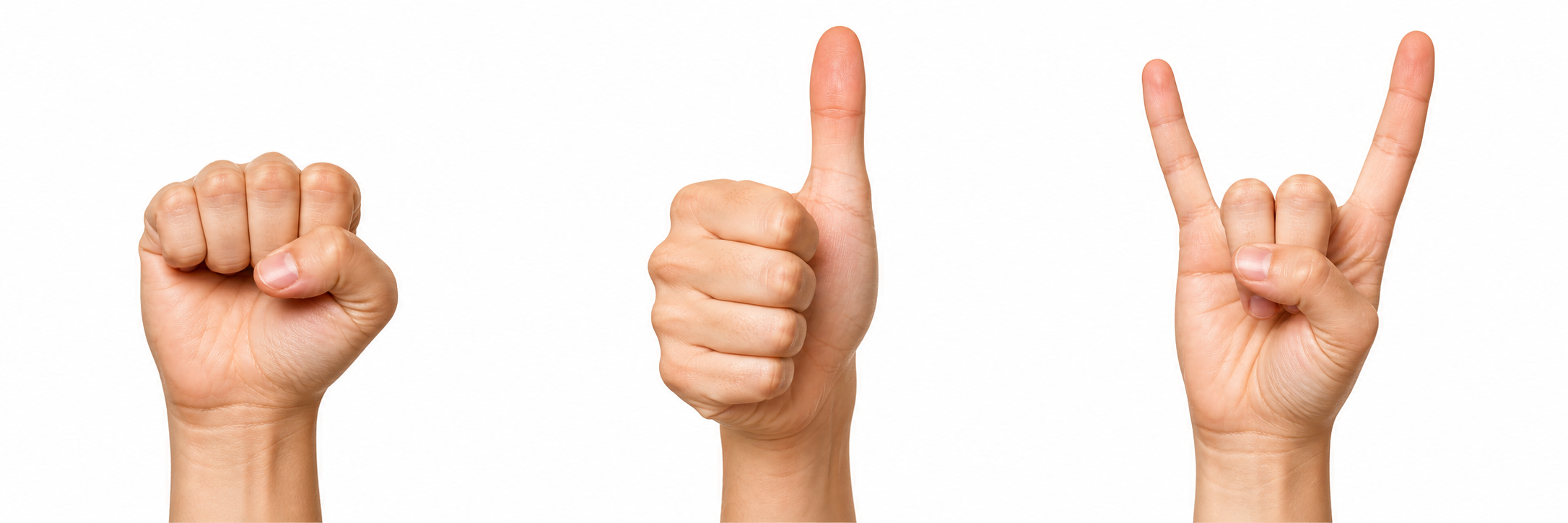
No wearable, no extra controller, no cloud model in the pointer loop. Just a native Windows app and your camera.
Move and click across the selected Windows display, beyond the app’s camera preview.
Hand tracking runs locally. AirDesk does not record your camera feed or send it to a cloud model.
Use your physical mouse to take over. Open your hand to rest, or pause with Ctrl + Alt + Space.
Start with Automatic in Settings → General. There is no manual reach setup to work through first.
Automatic adapts your reach from the visible size of your hand while you start or rest. It holds the mapping steady while you point, click or drag.
Fixed keeps your saved reach. Optional manual setup appears only when you choose Fixed.
Keep your whole hand in view. These settings adjust control reach, not camera zoom or a measured distance in centimetres.
Start with reference and navigation tasks on a Windows screen. Each of these examples needs its own supervised pilot.
Step through a repair guide or enlarge a parts diagram without reaching for a mouse.
Fix the camera position; test lighting, hand clearance and any gloves you plan to wear.
Open the next work instruction or inspect a reference image between assembly steps.
Use large, spaced controls and allow a deliberate pause to select each step.
Browse a short menu, map or visitor information on a shared display.
Use large menus and stable lighting, with separate kiosk software for lockdown and public sessions.
Move between reference photos, checklist pages or procedure steps on a nearby screen.
Keep a clear camera view and confirm that users can see each selection before continuing.
These are unvalidated pilot ideas. Never use AirDesk for machine start/stop, emergency functions or other safety controls.
A new way to interact, with clear boundaries.
Try the practice targets inside the home camera preview. Choose comfortable gestures. Then decide where AirDesk fits into your day.
Extract the entire ZIP, open AirDesk.exe, then try Practice on the home screen. Verify download (SHA-256)
Windows x64 · Version 0.9.2 · 14.3 MB